 TecnoOrange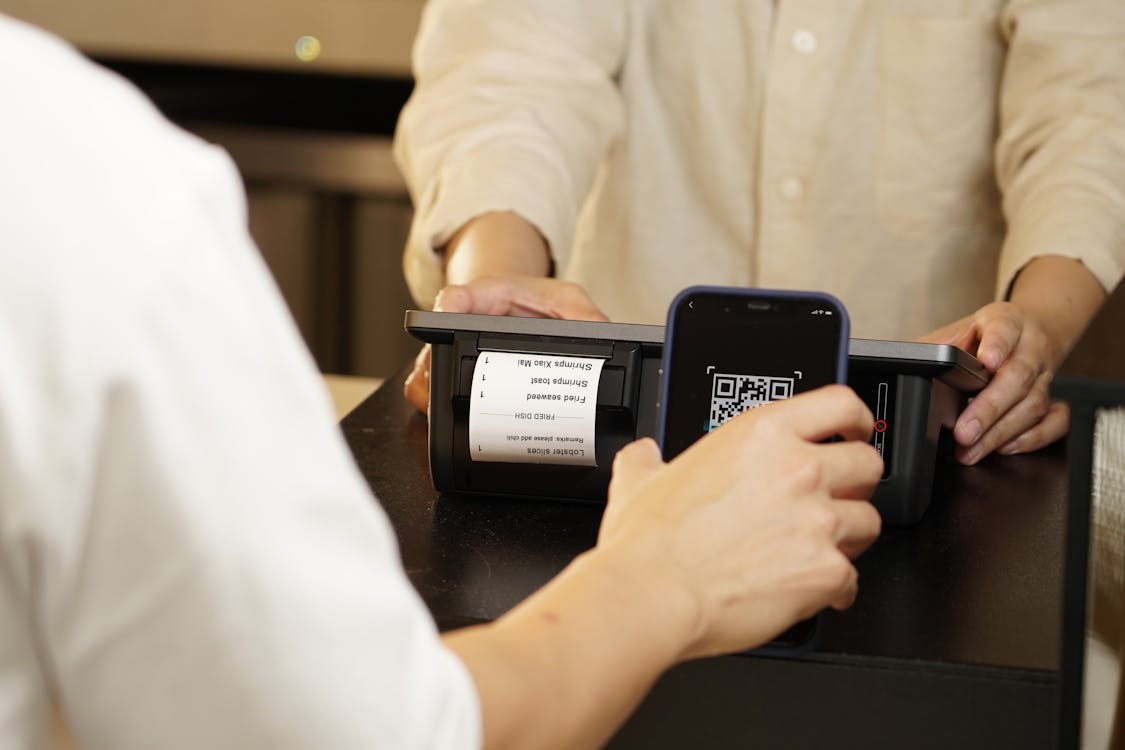
QR codes are everywhere: restaurant menus, concert tickets, payments, WiFi… and people still download third-party apps to read them when Android already does it natively. Learning how to scan a QR code without app on Android saves you space, time, and the risk of installing something suspicious.
Table of contents
Table of contents
- Why you don’t need an app for QR codes
- Method 1: Use the camera directly
- Method 2: Google Lens (included in Android)
- Method 3: Google QR scanner widget
- Method 4: Scan QR from a saved photo
- What to do if nothing works
- QR security tips
- How to create your own QR codes
- Advanced uses of QR codes
- Dynamic vs static QR codes
- FAQ: Frequently asked questions
- Conclusion
Why you don’t need an app for QR codes
For years, QR codes required a dedicated app. But since Android 8 (and especially since Android 9), Google integrated the QR scanner directly into the system camera. In 2026, practically any Android can read a QR code simply by pointing the camera at it.
The problem is that many people don’t know this feature exists, or don’t know where to find it. Let’s unlock it.
Method 1: Use the camera directly
This is the fastest method and works on most current Android phones.
Steps
- Open your phone’s Camera app.
- Point at the QR code without zooming.
- Wait 1-2 seconds. The camera will automatically detect the code.
- A notification or link will appear on screen.
- Tap the notification to open the content.
What if the camera doesn’t detect the QR code?
Some phones have QR detection disabled by default. Enable it like this:
- Samsung: Open camera > tap the gear icon (Settings) > look for “QR codes” and enable it.
- Xiaomi: Camera > three lines > Settings > Enable “Detect QR codes”.
- Google Pixel / Stock Android: Camera > Settings > Enable “Google Lens suggestions” or “QR codes”.
- Motorola: Camera > Settings > Enable “QR code scanner”.
Pro-tip: If your camera doesn’t have the QR option in settings, your Android version is probably earlier than Android 9. In that case, use method 2 or 3.
Method 2: Google Lens (included in Android)
Google Lens comes pre-installed on most Android phones and can scan QR codes without any problem.
How to use Google Lens for QR
- Open the Google app or Google Photos.
- Find the Google Lens icon (looks like a camera with an L around it).
- Point at the QR code or select a photo containing one.
- Lens will recognize the code and show the link.
Other ways to access Google Lens
- From the Google bar: on the Google search bar (on your home screen), there’s usually a Lens icon on the right.
- From Google Assistant: say “Hey Google” and tap the Lens icon.
- From Google Photos: open a photo with a QR code and tap the Lens icon.
Google Lens is my favorite option because it works both in real time and with saved photos. If someone sends you a QR photo on WhatsApp, you can scan it directly.
Method 3: Google QR scanner widget
Google has a dedicated QR scanning widget you can put on your home screen.
How to add the widget
- Long-press an empty space on the home screen.
- Tap Widgets.
- Look for Google in the list.
- Find the “Google Lens” or “QR Code Scanner” widget.
- Drag it to your home screen.
Now you’ll have a direct button that opens the QR scanner in one tap. Very practical if you scan QR codes frequently.
Method 4: Scan QR from a saved photo
Sometimes you receive a QR via WhatsApp, email, or social media. You don’t need to print it or show it on another screen to scan it.
With Google Lens
- Save the QR image to your gallery.
- Open the photo in Google Photos.
- Tap the Google Lens icon.
- Lens will detect the QR code in the image and show the link.
With the Google app
- Open the Google app.
- Tap the Lens icon.
- Select the QR image from your gallery.
- Done, the content will display.
What to do if nothing works
If your Android is very old or none of the above options work:
Last resort: lightweight open-source apps
If you need to install something, choose verified open-source apps, not generic scanners:
| App | Size | Advantage |
|---|---|---|
| QR & Barcode Scanner (F-Droid) | ~2 MB | Open-source, no ads |
| Binary Eye | ~1 MB | Very lightweight, open-source |
| QR Scanner (SecScan) | ~1 MB | Security focused |
Avoid QR scanner apps with millions of downloads that ask for camera, contacts, location, and storage permissions. Those are usually data harvesters.
Warning: Never download a QR scanner that asks for contacts or SMS permissions. It doesn’t need them to work and it’s a sign that it collects unnecessary data.
QR security tips
QR codes aren’t inherently dangerous, but you should be careful:
Don’t scan QR codes from unknown sources
A QR can redirect to a malicious website. If you scan a QR on the street, a suspicious sticker, or paper stuck over another QR, verify the URL before clicking.
Always check the URL before opening
When the camera or Lens shows the QR content, read the URL. If it looks strange, don’t open it.
QR codes can’t install apps by themselves
A QR can only open a URL. It can’t install malware directly. The danger comes if the URL takes you to a page that asks you to download something.
How to create your own QR codes
Scanning QR codes is fine, but sometimes you need to create one. There are several ways to do it without installing anything.
From the browser
Websites like QR Code Generator or Adobe’s QR generator let you create QR codes directly from your phone’s browser:
- Open the browser and go to a QR generator website.
- Enter the content (URL, text, phone number, WiFi).
- Customize the color and size if the tool allows it.
- Download the QR image.
Content you can encode in a QR
QR codes aren’t just for web links. They can contain:
| Content type | Example use |
|---|---|
| URL | Link to your website or portfolio |
| Plain text | Message, instructions |
| Phone number | Quick contact card |
| WiFi data | Share network without saying the password |
| Calendar event | Invitation with date and time |
| Pre-fill recipient and subject | |
| GPS location | Exact address in Google Maps |
QR for sharing WiFi (the ultimate trick)
If you have a business or receive visitors at home, you can create a QR that automatically connects to your WiFi:
- Use a QR generator that supports the “WiFi” type.
- Enter the network name (SSID), password, and security type (WPA/WPA2).
- Print the QR and place it in a visible spot.
Anyone who scans the code will connect automatically without typing the password. It’s elegant and practical.
Advanced uses of QR codes
QR codes can do much more than open web links. These lesser-known uses might surprise you.
Payments and transfers
Payment apps like Venmo or Google Pay generate QR codes to receive money. In many Asian countries, paying with QR is more common than paying with a card. It’s growing in Western markets too, especially at farmers’ markets and small businesses.
Two-factor authentication
Many 2FA services use QR codes to set up authentication. When you see “scan this code with your authenticator app,” it refers to a QR containing a secret key. Never share screenshots of these QR codes.
Restaurant menus
The most visible post-pandemic use. Instead of physical menus, many restaurants place a QR on the table that links to the digital menu. It works well, though sometimes the page loads slowly and I miss paper menus.
Inventory and labels
Some businesses use QR codes as inventory labels. You scan the code and it takes you to the product page with all its information: stock, price, warehouse location.
Invitations and tickets
Concert tickets, flight boarding passes, event invitations. QR codes replace printed paper because they’re hard to forge and easy to validate with a scanner.
Dynamic vs static QR codes
Not all QR codes are the same. This distinction is important if you plan to create QR codes for professional use.
Static QR
- The content is encoded directly in the code’s pattern.
- It can’t be changed after creation.
- Ideal for: short URLs, fixed text, WiFi data.
Dynamic QR
- The QR points to an intermediate URL that redirects to the actual content.
- You can change the destination without modifying the physical QR.
- Ideal for: marketing campaigns, changing menus, updatable information.
Which one to choose?
If it’s for personal use or a QR you won’t change, use static. If it’s for a business or campaign where content might change, invest in a dynamic QR. There are services that offer free dynamic QR codes with scan limits.
Pro-tip: Dynamic QR codes also let you track how many times they’re scanned, from which country, and at what time. This is valuable information if you use QR codes for marketing.
FAQ: Frequently asked questions
Can my Android scan QR codes without internet?
Yes, the QR scanner works offline. It can read the code and show the content. But if the content is a URL, you’ll need internet to open it. If it’s plain text or contact data, it will display without any problem.
Can I scan a QR code from a computer screen?
Yes, point your phone’s camera at the computer screen. Make sure the screen brightness is high and there are no reflections. It works without any problem.
Why doesn’t my camera detect QR codes?
It could be that detection is disabled in settings, your Android version is earlier than 9, or the QR image is damaged or blurry. Use Google Lens as an alternative.
Can I scan a QR code from a screenshot?
Yes. Save the screenshot, open it in Google Photos, and use Google Lens. It will detect the QR code in the image perfectly.
Conclusion
Knowing how to scan a QR code without app on Android is simpler than it seems: the system camera or Google Lens do the job without needing to download anything. My recommendation: add the Lens widget to your home screen if you use QR codes frequently, and forget about installing third-party apps.