 TecnoOrange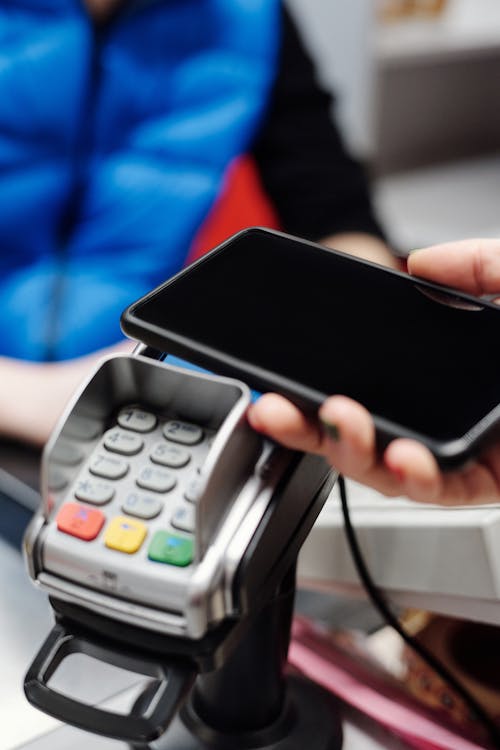
I’ve been going walletless for over three years now when I run out for quick shopping. NFC technology has allowed me to pay with my phone at any store instantly and securely. If you’re not using it yet, I promise once you start you won’t want to pull your card out of your pocket again.
Table of contents
Table of contents
- What is NFC and why it’s the tech behind mobile payments
- Requirements for NFC payments on your phone
- Setting up Google Pay for NFC payments
- Setting up Samsung Pay and alternatives
- How to pay in store step by step
- Security in NFC payments
- Common problems and solutions
- FAQ: Frequently asked questions
- Conclusion
What is NFC and why it’s the tech behind mobile payments
NFC stands for Near Field Communication. It’s a wireless technology that allows data exchange at very short range, normally less than 4 centimeters. When you hold your phone up to the card reader, a quick and secure communication is established between your device and the payment terminal.
What makes NFC phone payments special is that they don’t need an internet connection to work. Once your card is set up in the payment app, the transaction is processed locally through your phone’s NFC chip. This means you can pay even in areas without cell coverage.
How it works internally
When you hold your phone near the payment terminal, the NFC chip sends your card data in encrypted form. The terminal receives this information and processes it as if it were a normal contactless card. The whole process takes less than two seconds and no sensitive data is stored on the terminal.
Pro-tip: NFC communication range is so short that it’s practically impossible for someone to capture your data remotely. It’s more secure than paying with a physical card because it also adds biometric authentication (fingerprint or face).
Requirements for NFC payments on your phone
Before configuring anything, you need to check that your device meets the basic requirements for using NFC to pay with your phone.
Your phone needs an NFC chip
The vast majority of smartphones released since 2018 include an NFC chip. If you have a mid-range or flagship phone from the last 4-5 years, you almost certainly have one. To check, go to Settings > Connectivity and look for the “NFC” option. If it’s there, you’re good to go.
Phones that generally don’t have NFC are budget models from minor brands or very cheap devices. When in doubt, look up your model’s specs on the manufacturer’s website.
Compatible bank card
You need a debit or credit card issued by a bank compatible with mobile payments. In 2026 the vast majority of banks are compatible, but some digital banks or fintechs might have limitations.
| Payment system | Compatible banks | Devices |
|---|---|---|
| Google Pay | Almost all banks | Android with NFC |
| Apple Pay | Almost all banks | All iPhones |
| Samsung Pay | Major banks | Samsung with NFC |
| Bank’s own app | Varies | Depends on bank |
The store needs a contactless terminal
While more and more stores accept contactless payments, there are still shops with old card terminals. Look for the wave symbol or contactless icon on the terminal. If the reader accepts contactless cards, it will also accept NFC phone payments.
Setting up Google Pay for NFC payments
Google Pay is the most universal option for paying with your phone via NFC on Android. Setup is simple and it works with most banks.
Step-by-step for Android
- Download Google Wallet from Google Play if you don’t have it installed
- Open the app and tap “Add a card”
- Enter your card details (number, expiration date, CVV)
- Your bank will send a verification code via SMS or their app
- Enter the code and confirm
- Set Google Pay as your default payment app in Settings > Apps > Default payment app
Once configured, to pay with NFC at any store you just need to unlock your phone and hold it near the terminal. You don’t need to open any app.
Configure for a smooth experience
I recommend enabling the option to pay with screen off. This way, when you pull your phone from your pocket and hold it near the terminal, the payment goes through directly after recognizing your fingerprint or face. It’s the closest thing to pulling out a card without thinking.
Setting up Samsung Pay and alternatives
If you have a Samsung, you have additional options. And if you prefer other alternatives, those exist too.
Samsung Pay
Samsung Pay works similarly to Google Pay but with the advantage that some older Samsung models can use MST technology in addition to NFC. MST simulates a card’s magnetic stripe, allowing you to pay at terminals that aren’t contactless. Although in 2026 this is less relevant since almost all terminals are contactless.
Setup is almost identical: download Samsung Wallet, add your card, and follow the verification instructions.
Bank apps
Many banks have their own NFC payment apps. Your bank might offer this functionality directly in their app. The advantage is you don’t need to install anything extra, but the downside is it only works with cards from that specific bank.
Pro-tip: I have both Google Pay and my bank’s app configured. Google Pay as default for most purchases, and the bank app as backup. If one fails I always have the other option available.
How to pay in store step by step
Once everything is set up, using NFC to pay with your phone is the simplest thing in the world. Let me walk you through different scenarios.
Payment with screen on
If your phone is unlocked, simply hold it near the payment terminal. Your default card will appear on screen and the payment will process. When you hear the beep or see confirmation on the terminal, you’re done. Pull your phone away and that’s it.
Payment with screen off
If you have screen-off payment enabled, place your phone near the terminal. The screen will light up showing your card and ask for biometric authentication. Verify your fingerprint or face and the payment will complete.
Payments over $50
In many countries there’s a contactless limit without authentication, normally around $50-100. For higher amounts you’ll always need to authenticate with fingerprint, PIN, or face recognition. This adds extra security to larger transactions.
| Payment amount | Authentication required | Process |
|---|---|---|
| Up to $50 | Depends on bank | Tap and done (or authenticate) |
| $50 - $200 | Fingerprint, face, or PIN | Authenticate and tap |
| Over $200 | Mandatory authentication | Authenticate and tap |
Security in NFC payments
A lot of people ask me if it’s safe to pay with NFC on your phone. My answer is always that it’s more secure than paying with a physical card, and here’s why.
Data tokenization
When you add a card to Google Pay or Apple Pay, your real card data is never sent to the terminal. Instead, a unique token is generated for each transaction. If someone intercepted the NFC communication, what they’d get is an unusable code.
Biometric authentication
Unlike paying with a physical contactless card where you just tap it, phone payment requires the device to be unlocked. This adds a huge security layer. If someone steals your wallet they can use your contactless card. If they steal your phone, they can’t make payments without your fingerprint or face.
Lost or stolen protection
If you lose your phone, you can lock it remotely from any browser using Google’s “Find My Device” or Apple’s “Find My iPhone” feature. Payment data is immediately disabled. With a lost physical card, the process is slower and more tedious.
Pro-tip: Always set up biometric lock on your phone if you’re going to use NFC payments. A 4-digit PIN is more vulnerable than your fingerprint or face.
Common problems and solutions
Not everything works perfectly every time. These are the most common problems I’ve encountered when using NFC to pay with your phone and how to solve them.
The terminal doesn’t recognize my phone
Make sure NFC is enabled in settings and that your payment app is set as default. Also check that the screen is on and the device is unlocked. Sometimes it helps to hold your phone at a slightly different angle to the terminal.
My bank isn’t on the list
Some smaller banks or fintechs might not be supported. Check Google Pay or Apple Pay’s website for compatible banks in your country. If your bank isn’t there, consider using a card from another bank as a secondary option.
The payment went through twice
This happens rarely but can occur if you hold your phone near the terminal for too long. The terminal interprets it as wanting to make two transactions. If this happens, contact your bank to reverse the duplicate charge.
FAQ: Frequently asked questions
Does NFC payment work without internet?
Yes, once your card is set up in the app, NFC payments are processed locally without an internet connection. The payment terminal handles the communication with the bank.
Can I use NFC payments in any country?
Yes, as long as the store’s terminal accepts contactless payments. Mobile payment systems work internationally. I’ve used Google Pay in the US, UK, France, and Spain without any problems.
Is paying with your phone via NFC free?
Yes, neither Google Pay, Apple Pay, nor Samsung Pay charge users any fees. Your bank shouldn’t charge extra for mobile payments either.
What if my phone runs out of battery?
If your phone dies from low battery, you won’t be able to use NFC to pay. Some iPhones allow payments with battery reserve for a limited time, but on Android this isn’t possible. It’s always a good idea to have a backup plan.
Conclusion
Using NFC to pay with your phone at any store is one of those technologies that once you try, you can’t go back. The convenience of not carrying a wallet, the security of biometric authentication, and the speed of transactions make the experience superior to physical card payments. If your phone has NFC and you haven’t set it up yet, I recommend doing it today. In less than five minutes you’ll have a payment method that’s more convenient, faster, and more secure.