 TecnoOrange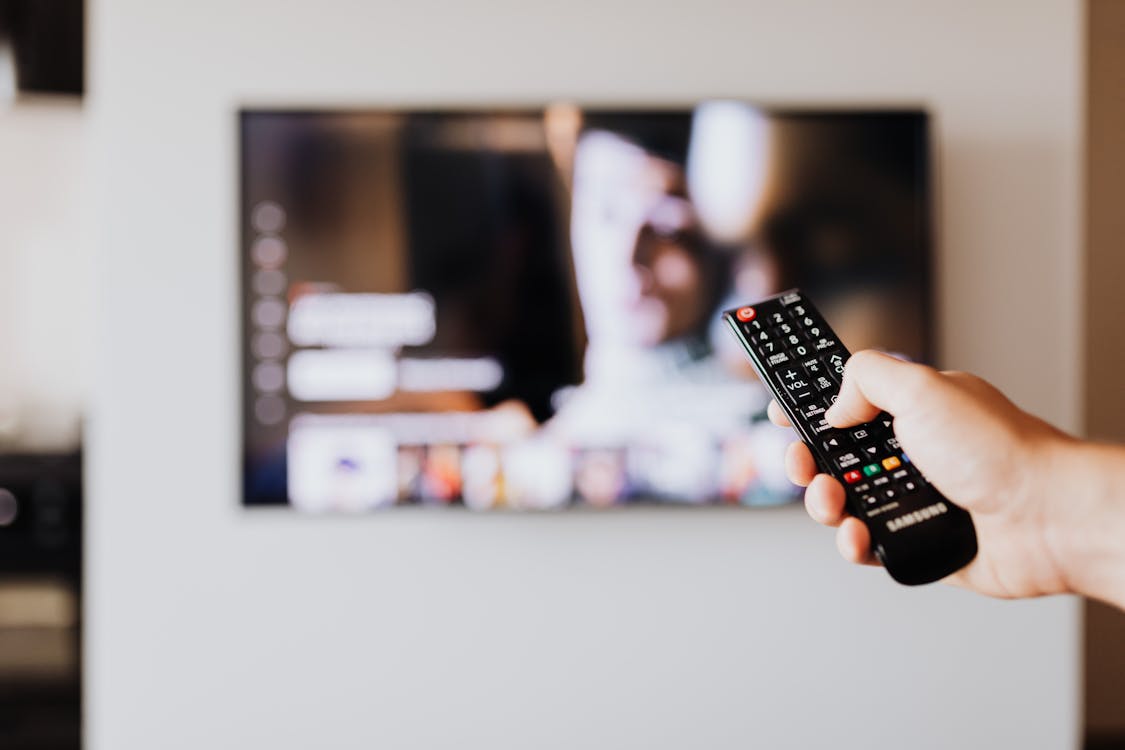
Losing the TV remote is a classic in any home. I’ve spent more time than I’d like to admit searching for the remote between couch cushions. But what if your phone could replace the remote? It’s no joke: with the right apps, your Android can control the TV, air conditioner, projector, and practically any device with an infrared receiver or WiFi. I’ll show you how.
Table of contents
Table of contents
- Prerequisites: Does your phone have infrared?
- Apps to use your phone as a remote with infrared
- WiFi alternatives (without infrared)
- Comparison table of methods
- Tips for using your phone as a remote
- How to create custom scenes and routines
- Privacy and security when using your phone as a remote
- FAQ
- Conclusion
Prerequisites: Does your phone have infrared?
Before anything, you need to know if your phone has an infrared emitter (IR blaster). It’s a small LED that emits infrared signals, just like traditional remotes.
How to check
- Look at the top of your phone. If you see a small black hole near the microphone or sensor, it’s probably the IR blaster.
- Check your phone’s spec sheet for the word “infrared” or “IR blaster.”
- Install an app like “IR Test” from the Play Store that will tell you if you have the sensor.
Brands that usually have infrared
- Xiaomi/Redmi/POCO: Almost all models include it. One of Xiaomi’s great advantages.
- Samsung: Only older models (Galaxy S6 and earlier). Current ones do NOT have it.
- Huawei: Many models include it.
- Honor: Various models have it.
- Google Pixel: Does NOT have infrared.
If your phone doesn’t have infrared, don’t worry. There are WiFi alternatives I’ll explain below.
Pro-tip: If you’re thinking about buying a phone and this feature interests you, Xiaomi phones are your best bet. Almost all include infrared.
Apps to use your phone as a remote with infrared
Mi Remote (Xiaomi)
If you have a Xiaomi, you already have the app preinstalled. Mi Remote is probably the best universal remote app:
- Open Mi Remote (or search for it in the app drawer).
- Tap ”+” to add a device.
- Select the type: TV, air conditioner, projector, etc.
- Choose the device brand.
- Point the phone at the device and tap the test button.
- If it works, save the configuration.
Mi Remote has a huge device database and the setup is very intuitive. In my case, I control my Samsung TV, a Daikin air conditioner, and an Epson projector without any issues.
AnyMote Universal Remote
One of the most complete apps available:
- Download AnyMote from the Play Store.
- Set up the IR emitter.
- Add your devices.
- Create scenes (e.g., “Movie night” that turns on TV + dims lights + activates projector).
AnyMote allows creating macros and automations. You can set up a button that turns on the TV, switches to HDMI 1, and lowers the volume to your preferred level.
Peel Smart Remote
Another popular option with a good device database. It includes an integrated TV guide showing what’s on each channel.
WiFi alternatives (without infrared)
If your phone doesn’t have infrared, you can control smart devices via WiFi:
For Smart TVs
Most modern Smart TVs can be controlled via WiFi:
- Samsung Smart TV: Download SmartThings from the Play Store. Connect your phone to the same WiFi network as the TV. The app will detect the TV automatically.
- LG Smart TV: Use the LG ThinQ app.
- Android TV / Google TV: Use Google Home or the Android TV Remote Control app.
- Roku: Download the official Roku app.
For smart home devices
If you have a smart home ecosystem (smart lights, thermostats, etc.), each manufacturer’s app lets you control them from your phone. Google Home and Alexa are the most common hubs.
With a WiFi IR hub
If you want to control traditional devices (old air conditioner, fan, etc.) without infrared on your phone, you can buy a WiFi IR hub for about $15-25:
- Buy a hub like Broadlink RM4 Mini or SwitchBot Hub Mini.
- Connect it to your WiFi network.
- Place it in a central position in the room.
- Use the hub’s app to set up your devices.
- Now you can control them from any phone connected to the same network.
This is my favorite solution because it works from any phone, regardless of whether it has infrared or not.
Comparison table of methods
| Method | Requirement | Range | Compatibility | Price | Ease |
|---|---|---|---|---|---|
| Phone’s native IR | IR sensor | Same room | Very high | Free | Easy |
| SmartThings/WiFi | Smart TV | Same network | Smart only | Free | Easy |
| WiFi IR hub | External hub | Entire house | Very high | $15-25 | Medium |
Tips for using your phone as a remote
IR emitter position
The infrared emitter must point directly at the device’s receiver. It doesn’t work well through obstacles or at sharp angles. Keep the phone pointed at the device while using the remote.
Maximum range
Typical range is 5-8 meters. If you’re further away, the signal may not reach.
Battery
Using the IR emitter drains battery, but it’s minimal. Don’t worry about it.
Multiple rooms
If you want to control devices in multiple rooms, you need an IR hub in each room or a phone with IR in each room. WiFi hubs are the most practical solution.
How to create custom scenes and routines
One of the most powerful features of using your phone as a universal remote is the ability to create custom scenes and routines that group multiple actions into a single tap.
A scene is a combination of actions that execute simultaneously. For example, you can create a “Movie night” scene that turns on the TV, switches to HDMI 1, dims lights to 20%, turns on the projector, and sets the AC to quiet mode. All with one button on your phone.
Routines take this a step further: you can schedule them by time or by event. For example:
- Morning routine: At 7:30, the TV turns on to the news channel and coffee starts brewing.
- Night routine: At 11 PM, all entertainment devices turn off automatically.
- Away routine: When you leave home, all devices shut off to save energy.
These routines require a combination of the IR hub app and automation platforms like Google Home or IFTTT. The Xiaomi ecosystem is particularly strong in this regard, allowing you to integrate IR devices with motion sensors, schedules, and location.
Another lesser-known advantage is that you can share the virtual remote with other family members. Instead of setting up a physical remote for each person, you simply share the hub configuration over WiFi and everyone can control the same devices from their own phones.
Privacy and security when using your phone as a remote
Something few articles mention is the privacy aspect. When you connect your phone to an IR hub or a Smart TV over WiFi, the app collects information about what devices you have and when you use them. This isn’t necessarily bad, but it’s worth knowing.
What data do universal remote apps collect:
- Device models and brands
- Usage habits (when you turn things on and off)
- Energy consumption patterns
- In some cases, location data for automations
How to protect yourself:
- Review the app’s permissions before installing. If it asks for contacts or camera access without reason, be suspicious.
- Use apps from recognized manufacturers (Xiaomi, Samsung, Broadlink) instead of unknown apps.
- If you use an IR hub, make sure it’s updated with the latest firmware.
- Disable usage data collection in the app’s settings when possible.
In my opinion, the risk is minimal with well-known brand apps, but if you use a lesser-known third-party app, always check the privacy policy before giving it access to your home network.
FAQ
Does it work with any TV?
Practically yes. The app databases cover 95% of brands and models on the market. Rarer brands may require manual configuration.
Can I control the air conditioner?
Yes, as long as it has an IR receiver. Most air conditioners do. Apps have specific databases for each brand.
Is the phone faster than the physical remote?
The physical remote is slightly faster because you don’t have to unlock the phone and open the app. But the phone has advantages like macros and automations.
Do iPhones have infrared?
No, no iPhone has an infrared emitter. It only works with smart devices via WiFi.
Conclusion
Your phone can be the perfect universal remote. If it has infrared, you have direct control over almost any electronic device in your home. If it doesn’t, WiFi IR hubs for $20 give you the same functionality. I’ve been remote-free for two years and my life is simpler. Set up your phone as a remote today and say goodbye to the eternal search for the lost remote control.